txAdmin Guide: Setup & Manage a FiveM Server
txAdmin is the web panel and in-game administration menu bundled with FXServer. It gives FiveM server owners one place to start and restart the server, use the live console, manage players, deploy recipes, schedule restarts, edit server configuration, monitor performance, and control administrator permissions.
This guide covers the full txAdmin workflow from first launch to day-to-day server management. Use the linked specialist guides when you need deeper installation, security, recipe, monitoring, or permission instructions.
You do not install txAdmin separately. txAdmin is included with FXServer. On a first
setup, start FXServer without a +exec server.cfg launch argument so txAdmin can start
in monitor mode, create its txData directory, and show the setup URL in the console.
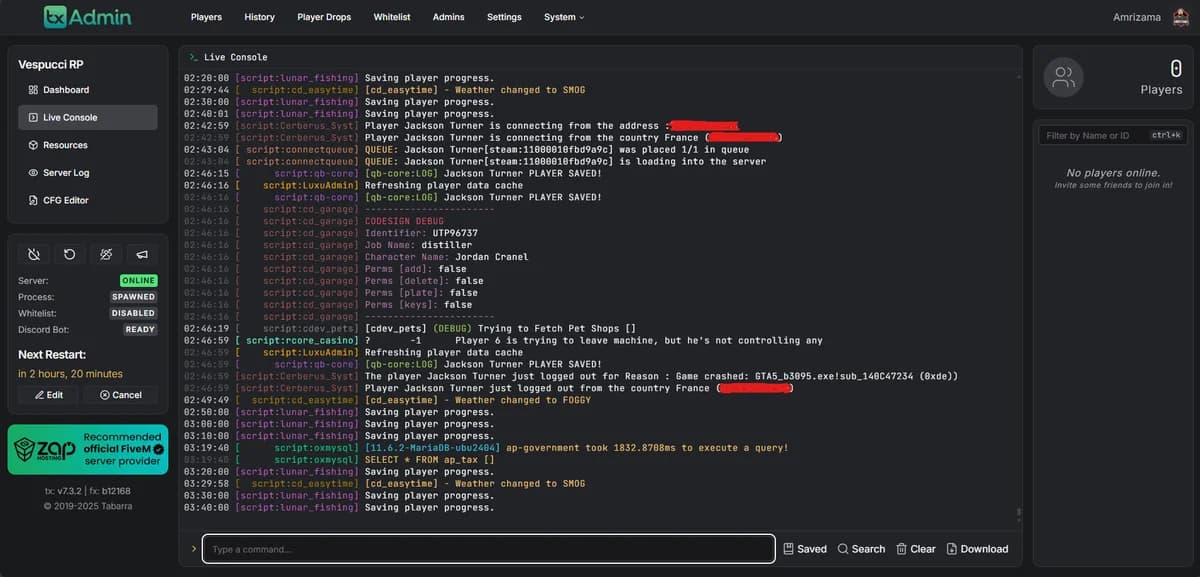
txAdmin at a glance
| Task | Where txAdmin helps |
|---|---|
| Start, stop, or restart FXServer | Server controls and scheduled restarts |
| Read logs or run commands | Live Console with command history and search |
| Start and stop resources | Resource controls from the web panel |
| Manage players | Real-time player list, warnings, kicks, bans, whitelist, notes |
| Administer in game | NoClip, teleport, spectate, freeze, heal, vehicle tools, announcements |
| Monitor the server | CPU/RAM usage, player count, performance charts, activity logs |
| Deploy a new server | Recipe-based Server Deployer |
| Edit configuration | server.cfg editor and validator |
| Limit staff access | Per-admin permissions and action logging |
| Automate maintenance | Scheduled restarts with warning announcements and events |
How to set up txAdmin
1. Install or update FXServer
Download a current FXServer artifact for your operating system. txAdmin is already part of the server artifact, so there is no separate txAdmin download.
For the full operating-system walkthrough, see txAdmin Installation.
2. Start FXServer in txAdmin monitor mode
For the first run, launch FXServer.exe on Windows or ./run.sh on Linux without a +exec server.cfg argument.
txAdmin creates its data directory and prints the setup address in the server console. The default web port is 40120.
3. Open the txAdmin setup page
For a local server, open:
http://localhost:40120For a remote machine, keep port 40120 closed to the internet and reach it
through an SSH tunnel (or a VPN) from your computer:
ssh -L 40120:127.0.0.1:40120 YOUR_SSH_USER@YOUR_SERVER_IPThen open http://127.0.0.1:40120 in your local browser. txAdmin listens on all
interfaces (0.0.0.0) by default, so a firewall rule is what keeps the panel
private.
The current setup flow uses the PIN shown in the FXServer console, then links the administrator’s Cfx.re account and creates a backup password before the server profile is configured.
4. Create the server profile
Choose a server name and deployment type. For a new server you can use the recipe deployer, including the CFX default recipe or a framework recipe. Existing server files can also be configured as a custom deployment.
A txAdmin profile stores its configuration under the txData directory. The default profile name is default.
5. Configure the server and start it
Complete the recipe or custom-data setup, add the required server registration key, review server.cfg, and start the server from txAdmin.
If you are setting up a new FiveM server from zero, the Quick Start with txAdmin covers the end-to-end server setup path.
Accessing txAdmin and port 40120
The default txAdmin HTTP port is 40120. FiveM game traffic normally uses 30120, so the two ports serve different purposes.
If txAdmin works on the server itself but not from another computer, check:
- The txAdmin URL and port shown in the FXServer console.
- How you reach it: use an SSH tunnel or VPN, or a firewall rule for TCP
40120restricted to your admin IP. Do not open40120to everyone. - Whether the hosting provider exposes txAdmin through its own proxy or control panel.
- Whether another process is already using the configured txAdmin port.
Do not expose an administration panel more broadly than necessary. Restrict network access where practical and follow the txAdmin Security guide.
Dashboard and Live Console
The txAdmin web interface is designed for routine server operations without requiring a separate terminal session.
The Live Console is one of the most useful areas for debugging. It provides server output, command execution, history, log search, and a persistent view of what FXServer and your resources are reporting.
Typical uses include:
- Running server console commands.
- Watching resource startup errors.
- Checking why a resource stopped or failed to load.
- Restarting a resource after a configuration change.
- Reviewing warnings before and after a deployment.
- Comparing player or performance problems with server log activity.
For resource-specific performance work, also use FiveM’s resource monitoring tools rather than treating CPU or RAM usage alone as the cause of a problem.
Server and resource management
txAdmin can start, stop, and restart the FXServer instance and can control individual resources from the panel.
This is useful when you need to:
- Restart a single resource instead of the entire server.
- Verify whether a resource is running.
- Apply a configuration change during maintenance.
- Stop a broken resource while investigating errors.
- Restart the server after artifact or configuration changes.
For production servers, avoid using full restarts as a substitute for debugging. Check the live console and resource logs first, then restart only what is required.
Player management and the in-game admin menu
txAdmin includes a real-time player list and a player database for moderation workflows. Depending on an administrator’s permissions, staff can warn, kick, ban, whitelist, message, freeze, heal, spectate, teleport, and review stored player information.
The in-game admin menu adds operational tools such as:
- NoClip, God Mode, and SuperJump.
- Teleport to a waypoint, coordinates, or another player.
- Go To, Bring, Spectate, and Freeze actions.
- Vehicle spawn, repair, delete, and boost tools.
- Announcements and world-area reset controls.
- Player ID display and player search.
txAdmin records administrative actions, so give staff only the permissions required for their role rather than sharing one unrestricted account.
Monitoring, crashes, and scheduled restarts
txAdmin monitors the FXServer process and can restart it after a crash or hang. The web panel also exposes server CPU/RAM usage, player count, performance information, live logs, and activity data.
Scheduled restarts can announce the restart to players and trigger txAdmin events so resources can react before or after a restart.
For a production server, a useful routine is:
- Schedule restarts for predictable low-traffic windows.
- Send advance warnings instead of restarting without notice.
- Check the console before the restart for recurring errors.
- Review the server after startup to confirm required resources loaded.
- Investigate repeated crashes instead of relying only on automatic recovery.
See txAdmin Monitoring for the site’s dedicated monitoring guide.
txAdmin recipes and the Server Deployer
Recipes automate the initial creation of a server. A recipe can download resources, create files, configure dependencies, and prepare a server layout without manually assembling every component.
Recipes are especially useful for:
- A first FiveM server.
- Disposable development or staging servers.
- Reproducible framework deployments.
- Standardized server templates for a team or hosting environment.
Treat a recipe as deployment automation, not as a guaranteed updater for a heavily customized production server. Back up and version your custom changes before rerunning deployment steps that may replace files.
See txAdmin Recipes for recipe workflows and custom recipe examples.
Permissions and security
txAdmin supports individual administrator accounts and granular permissions. The permission system can separate tasks such as viewing the console, writing console commands, restarting the server, editing server.cfg, managing other admins, and moderating players.
A safer setup is to:
- Keep the master account limited to trusted owners.
- Create separate accounts for each staff member.
- Grant the minimum permissions needed.
- Review action logs when investigating changes.
- Remove accounts that are no longer used.
- Protect remote access to the txAdmin web interface.
See txAdmin Permissions and txAdmin Security.
Discord integration
txAdmin can integrate with Discord for server-management workflows, including a persistent server status embed and supported commands for player information or whitelist operations.
Keep Discord bot credentials private and grant only the Discord permissions required by the integration. See txAdmin Discord Integration for the local setup guide.
txAdmin vs a hosting control panel
txAdmin and a hosting panel solve different problems.
txAdmin manages FXServer itself: server lifecycle, resources, console, players, recipes, configuration, monitoring, permissions, and scheduled restarts.
A hosting control panel manages the machine or container: billing, CPU/RAM allocation, files, networking, backups provided by the host, operating-system services, and sometimes database instances.
On managed FiveM hosting you may use both. The host panel gets the machine running; txAdmin manages the FiveM server process inside it.
Common txAdmin problems
txAdmin does not open
Confirm FXServer started in txAdmin monitor mode and use the URL printed in the console. If the panel works locally but not remotely, use an SSH tunnel or VPN, or a firewall rule for TCP 40120 restricted to your admin IP, and check any provider proxy configuration.
Port 40120 is already in use
Another process or txAdmin instance is listening on the same port. Stop the duplicate process or configure txAdmin to use another available port. Do not reuse the FiveM game port for txAdmin.
FXServer starts but resources fail
Open Live Console, identify the first relevant error, then check the resource’s fxmanifest.lua, dependencies, configuration, and ensure order in server.cfg.
A recipe fails during deployment
Check the deployer output for the exact failing task. Database credentials, file permissions, download failures, missing server keys, and pre-existing files are common places to investigate.
For more fixes, see txAdmin Troubleshooting.
txAdmin FAQ
Do I need to install txAdmin separately?
No. txAdmin is bundled with FXServer. Installing or updating FXServer provides txAdmin as part of the server package.
What is the default txAdmin port?
The default txAdmin HTTP port is 40120. The usual FiveM game port is 30120.
Where does txAdmin store its data?
txAdmin creates a txData directory and stores server-profile data below it. The default profile is named default.
Does txAdmin require MySQL?
txAdmin’s own player-management database does not require MySQL. A framework or server recipe such as QBCore or ESX may still require a separate database.
Can I change the txAdmin port?
Yes. Since txAdmin v8 the host settings are environment variables set before FXServer starts (env-config reference ):
TXHOST_TXA_PORT— the txAdmin web port (default40120; cannot be30120).TXHOST_INTERFACE— the interface txAdmin binds and forces FXServer to bind (default0.0.0.0).TXHOST_DATA_PATH— thetxDatafolder location.
The old txAdminPort, txAdminInterface and txDataPath ConVars are
deprecated. When running several servers on one host, give each instance its
own TXHOST_TXA_PORT and its own txData folder, and keep every txAdmin port
private.
Can I manage txAdmin remotely?
Yes, if the web interface is reachable from your network. Because txAdmin provides administrative control over the server, restrict and secure remote access rather than exposing it unnecessarily.
More txAdmin guides
- txAdmin Installation
- txAdmin First Run
- txAdmin Security
- txAdmin Recipes
- txAdmin Monitoring
- txAdmin Permissions
- txAdmin Discord Integration
- txAdmin Troubleshooting
Additional community documentation
For more task-focused help with setup, administration, and troubleshooting, see the independent txAdmin documentation at txadmin.org . This community resource complements the official project references below.